Custom Captions
Change table captions for Element fields
You can change captions on element fields at any time easily. Just follow the steps below. Once they are updated, users may need to log out and back in to see the changes take effect on their session.
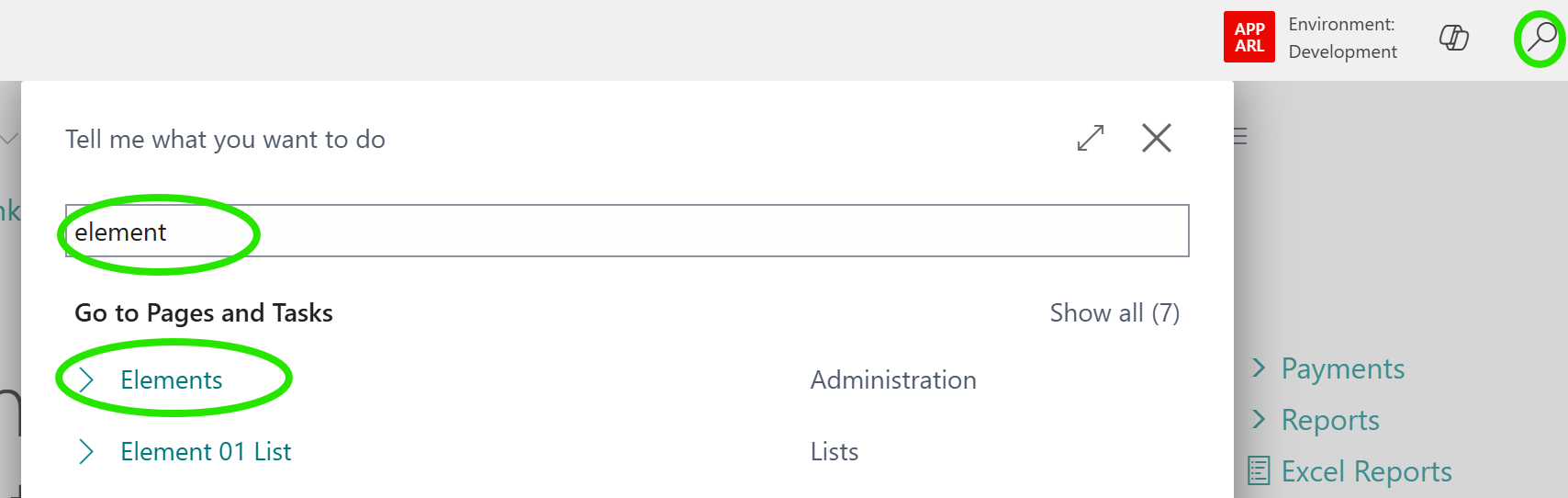
Click the Find Me icon and enter Elements and select the option Elements.
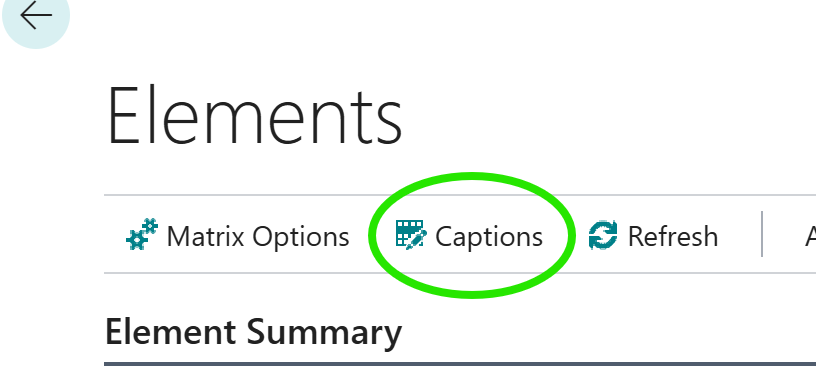
From the Elements Master page, click Captions.
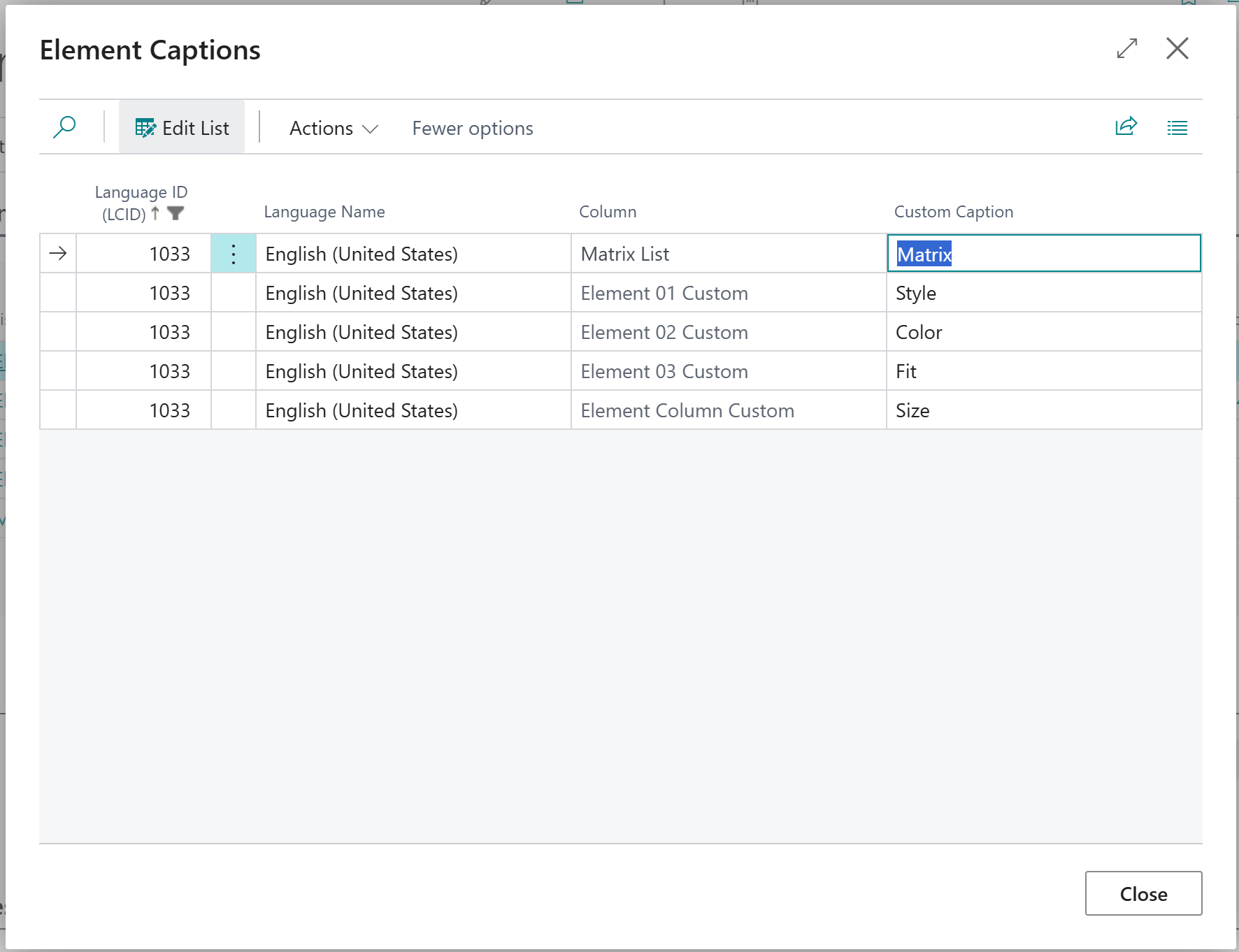
Each field is listed with the original in the Column. You can enter your own text for each field in the Custom Caption.
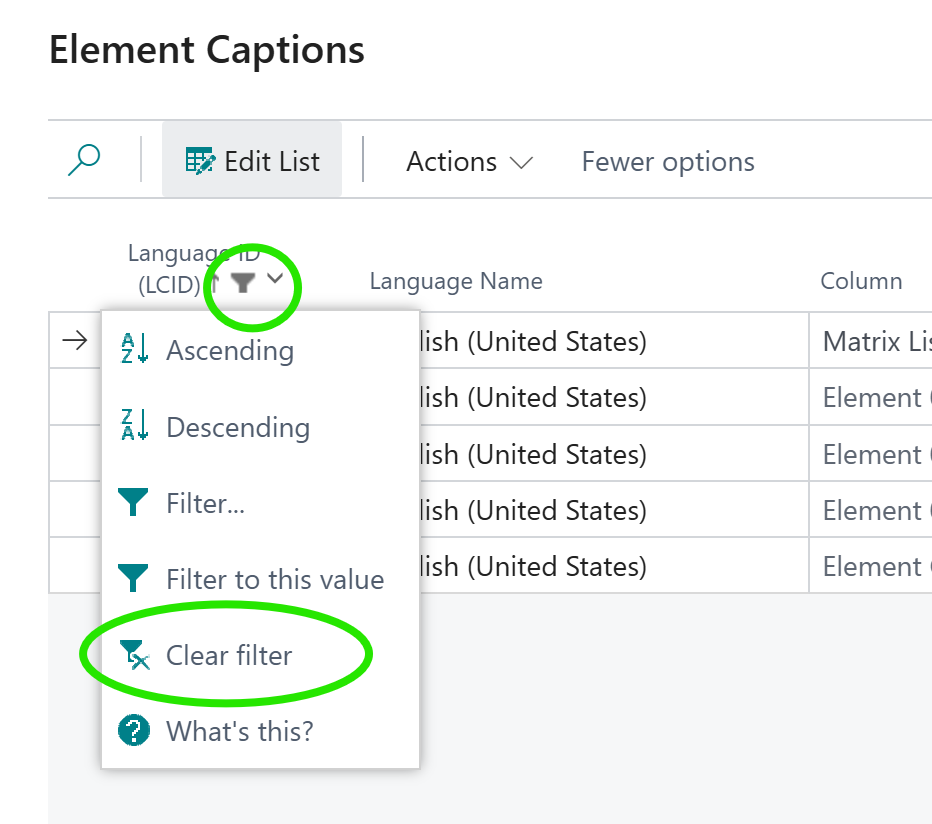
Custom captions are available in all languages. You can clear the filter on the Language ID to see other languages other than the default on your system.
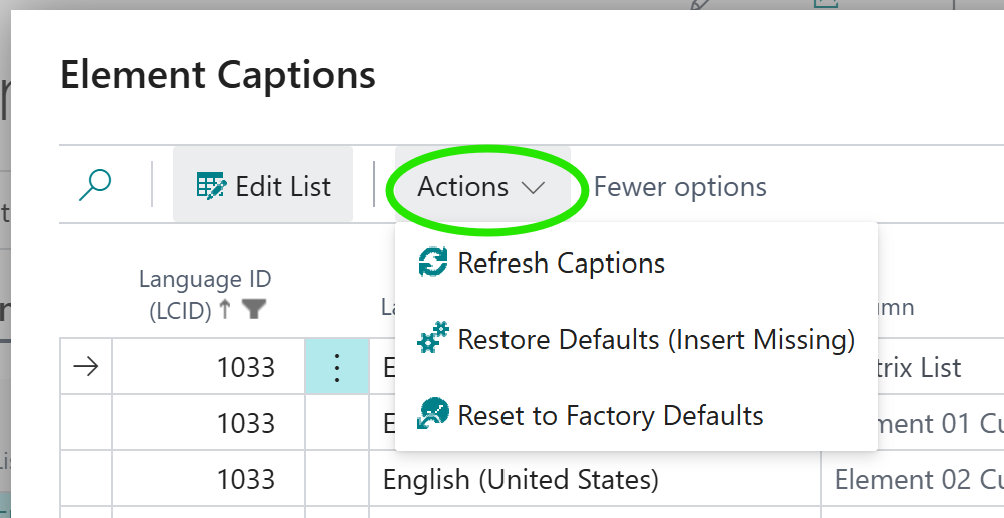
The Actions menu has options to Refresh Captions which will typically prevent users having to log out and back in after making caption changes, Restore Defaults restores any missing language records that may have been accidentally deleted, and Reset to Factory Defaults will set all captions in all languages back to the defaults when the extension was first installed.
User Customizations
User level customizations available
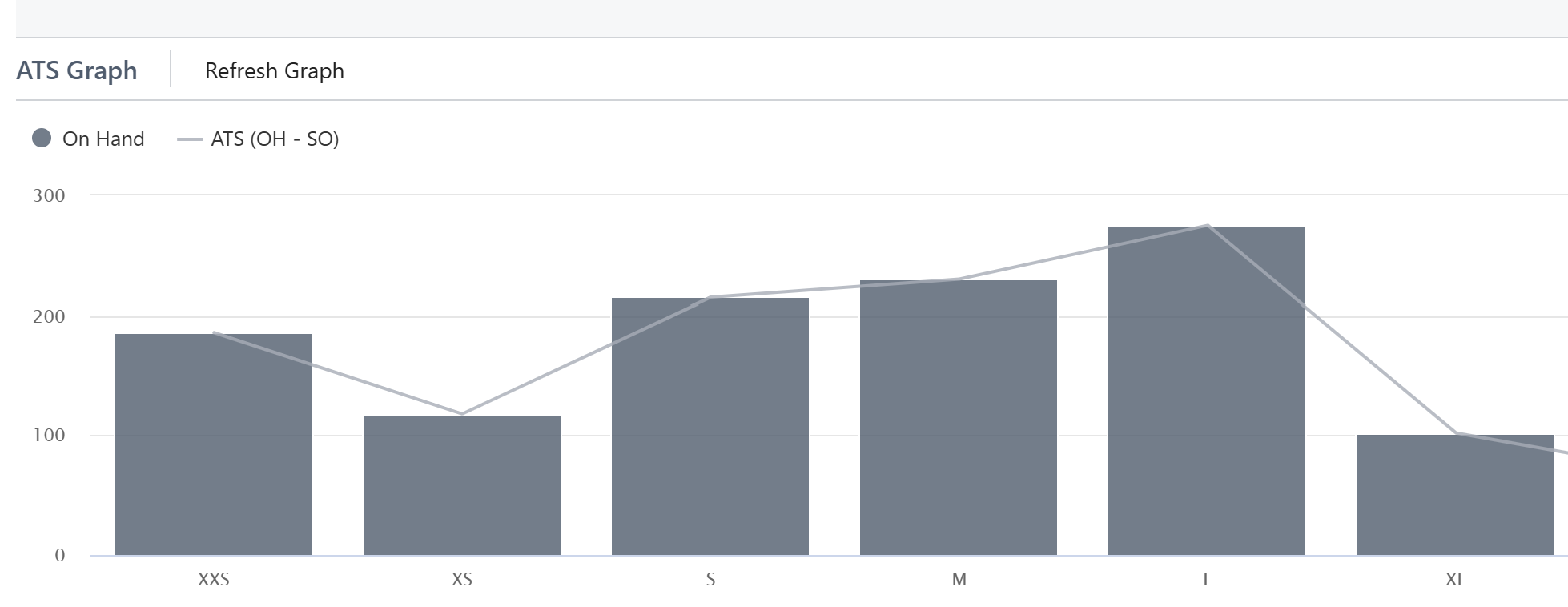
While Admins have many options for customization, one item is customizable per user. On most forms, there is an option to turn the ATS graph on or off. This will persist for each user individually. Sales Orders (including quotes, archives, etc) will be customizable for all with one toggle. Similarly for POs, ATS Inventories, etc. Each type is customizable for each user.
From the Matrix form, click the Toggle Graph to toggle the ATS graph on and off.
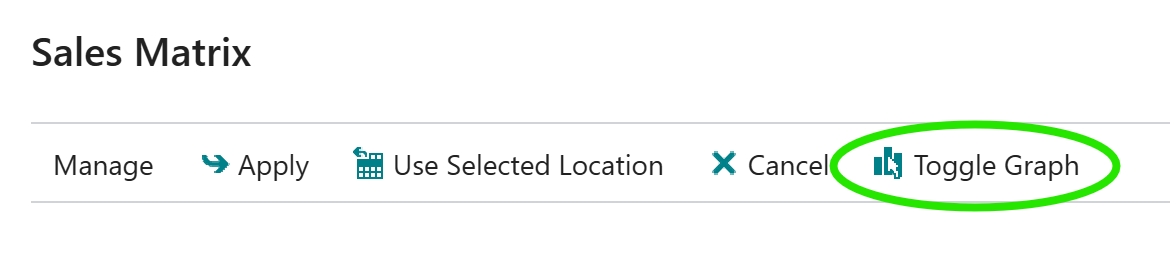
The ATS graph will then be enabled or disabled. Simply click the option again to turn it back on or off.
Available to Sell
On Hand - Sales Orders (open, picked, packed)
ATS is a calculation of what is Available to Sell (ATS). The calculation is the quantity On Hand minus the quantities on On Sales Orders. This includes any open (not shipped) orders, picked, or packed orders. Invoiced orders are NOT included because they are immediately removed from the On Hand quantity. The result is a number you could safely tell a customer you have available for them to buy without worrying about orders in the system that have simply not shipped yet or are in processing.
Sales Quotes are NOT included in the calculation because they are not yet fully qualified as approved sales orders.